
Sangfor HCI vs. Hyper-V: Which Is Better for UAE SMBs?
Hyper-V comes free with Windows Server, so for many startups and small teams it feels like the obvious pick. But “free” gets complicated fast, and the real question is whether Hyper-V still holds up once you scale.
That question has become more urgent since Broadcom’s acquisition of VMware changed licensing for many VMware customers. Teams that once defaulted to VMware are now weighing alternatives, and Hyper-V and Sangfor HCI are two that keep coming up.
Once you add Windows Server Datacenter licensing, Windows Admin Center, System Center VMM and a separate DR tool, you’re paying for pieces that come bundled into Sangfor HCI from day one.
This guide breaks down where each platform actually saves you money, where the licensing gets expensive, and which one fits a UAE SMB’s budget and team size better.
TL; DR
- Licensing: Hyper-V rides on Windows Server; Azure Local adds a per-core monthly fee. Sangfor HCI is one edition, perpetual or subscription.
- Storage: Hyper-V caps at 16 machines per cluster. Sangfor's aSAN scales to 64, with live node expansion.
- HA & DR: Hyper-V's best recovery point is 30 seconds. Sangfor claims 1 second, plus Proactive HA to catch failing hardware early.
- Management:Hyper-V splits across three Microsoft tools. Sangfor runs from one console.
- Security: Both cover VM and network security. Sangfor bundles a WAF and cloud security center in by default.
- Local support: DC Technologies helps UAE businesses plan and deploy Sangfor HCI, with local support throughout.
Sangfor HCI vs. Hyper-V: What's the Main Difference?
On paper, both platforms handle core virtualization just fine. The gap shows up somewhere else. It’s in how much you have to assemble yourself versus how much comes ready to go.
Here’s how the two stack up across those five areas:
Compute, storage, networking and security in one HCI stack
Hyper-V is the hypervisor layer; Azure Stack HCI adds the HCI stack on top
Single edition, perpetual or subscription
Hyper-V licensed with Windows Server; Azure Stack HCI billed per physical core per month
Core capabilities included in the platform
Security and DR often need separate tools (Windows Admin Center, System Center VMM, Azure Site Recovery)
High availability & DR
Proactive HA 2.0, built-in CDP with sub-second RPO
Failover Clustering for HA, Hyper-V Replica or Azure Site Recovery for DR
Fewer moving parts, one console to manage
Strong fit if you’re already running a Windows Server environment
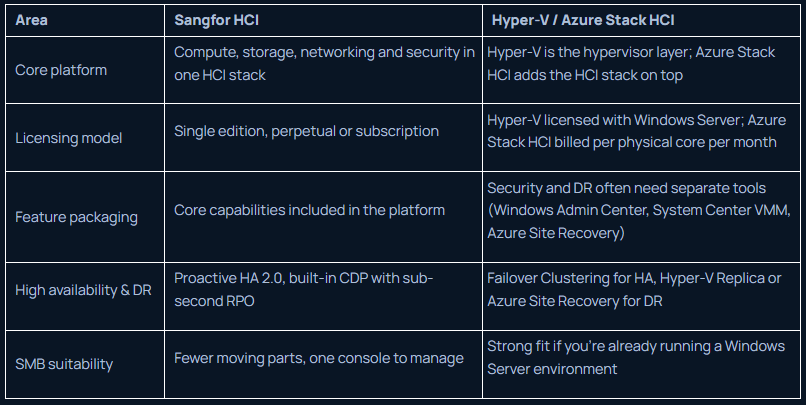
That gap between “built in” and “assembled separately” shows up most clearly in the numbers. Licensing is where it actually costs you something.
Licensing: Is Hyper-V Really Cheaper?
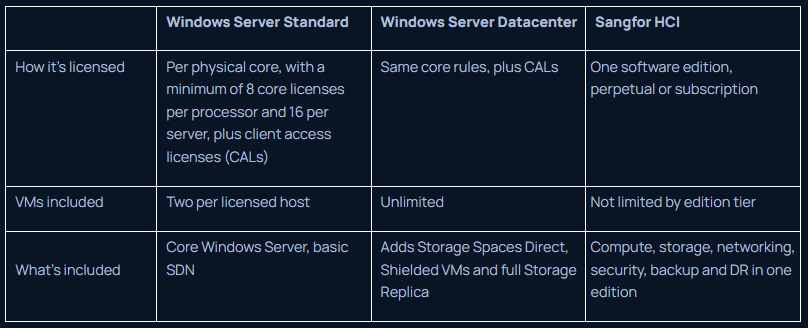
Hyper-V has no separate price. The Windows Server license it runs on does, and the cost depends on the edition and how many VMs you run.
Windows Server Standard
Windows Server Datacenter
How it’s licensed
Per physical core, with a minimum of 8 core licenses per processor and 16 per server, plus client access licenses (CALs)
Same core rules, plus CALs
One software edition, perpetual or subscription
VMs included
Two per licensed host
Unlimited
Not limited by edition tier
What’s included
Core Windows Server, basic SDN
Adds Storage Spaces Direct, Shielded VMs and full Storage Replica
Compute, storage, networking, security, backup and DR in one edition
How the cost changes as you grow
- More VMs on Standard: each VM needs its own set of core licenses on the host. Past a certain density, Datacenter’s unlimited VMs work out cheaper.
- More hosts: every host you add needs its own full set of core licenses, regardless of edition.
- Azure Local: charges two separate fees per physical core, per month: one for the host service, one for the Windows Server guest subscription. If you already hold Datacenter with active Software Assurance, Azure Hybrid Benefit can waive both.
- Sangfor HCI: one edition licenses the whole platform. You buy servers separately, from any brand, with no lock-in to a specific vendor.
Takeaway: Compare the cost of running the entire environment, not just the hypervisor.
Storage: Hyper-V with Shared Storage vs. Sangfor HCI
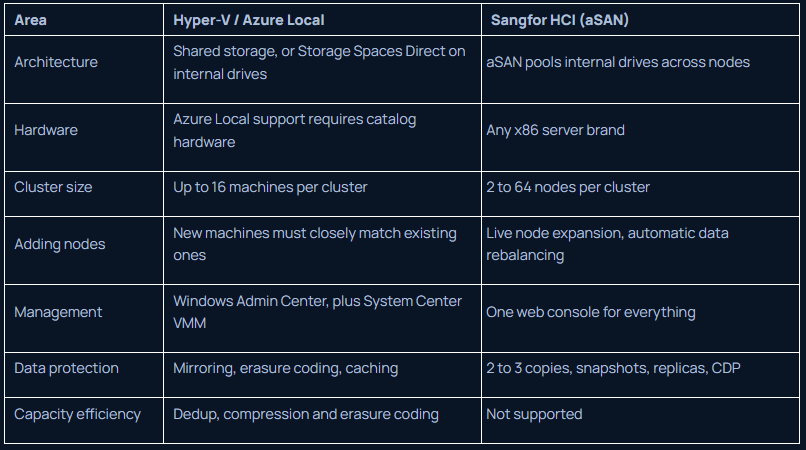
Hyper-V can run on shared storage or on Storage Spaces Direct, depending on the architecture. Sangfor HCI builds storage into the platform through aSAN, so compute and storage scale together.
Architecture
Shared storage, or Storage Spaces Direct on internal drives
aSAN pools internal drives across nodes
Hardware
Azure Local support requires catalog hardware
Any x86 server brand
Cluster size
Up to 16 machines per cluster
2 to 64 nodes per cluster
Adding nodes
New machines must closely match existing ones
Live node expansion, automatic data rebalancing
Management
Windows Admin Center, plus System Center VMM
One web console for everything
Data protection
Mirroring, erasure coding, caching
2 to 3 copies, snapshots, replicas, CDP
Capacity efficiency
Dedup, compression and erasure coding
Not supported
Takeaway: Compare the cost of running the entire environment, not just the hypervisor.
High Availability and Disaster Recovery: What Happens When a Host Fails?
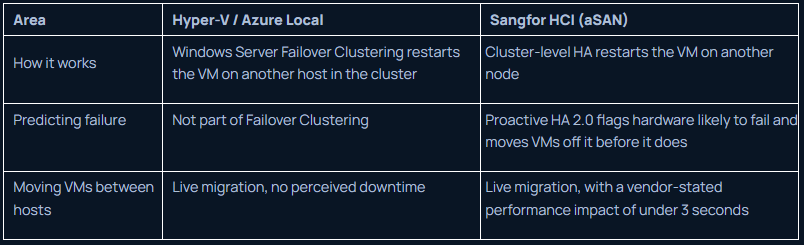
High availability and disaster recovery solve two different problems. High availability keeps a VM running when one host in the cluster fails. Disaster recovery brings your systems back after something bigger, like a site outage.
High availability
How it works
Windows Server Failover Clustering restarts the VM on another host in the cluster
Cluster-level HA restarts the VM on another node
Predicting failure
Not part of Failover Clustering
Proactive HA 2.0 flags hardware likely to fail and moves VMs off it before it does
Moving VMs between hosts
Live migration, no perceived downtime
Live migration, with a vendor-stated performance impact of under 3 seconds
Disaster recovery
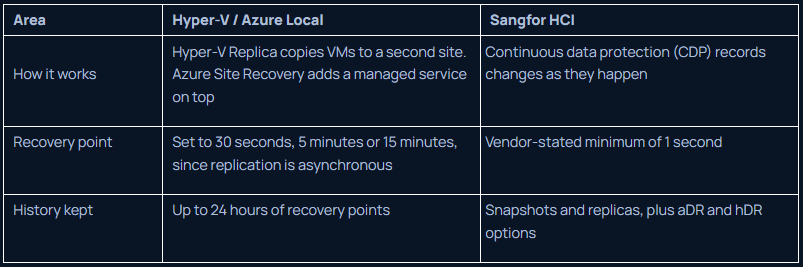
How it works
Hyper-V Replica copies VMs to a second site. Azure Site Recovery adds a managed service on top
Continuous data protection (CDP) records changes as they happen
Recovery point
Set to 30 seconds, 5 minutes or 15 minutes, since replication is asynchronous
Vendor-stated minimum of 1 second
History kept
Up to 24 hours of recovery points
Snapshots and replicas, plus aDR and hDR options
A recovery point objective (RPO) is how much data you can afford to lose, measured in time. A recovery time objective (RTO) is how long you can afford to be down.
Hyper-V Replica is asynchronous, meaning it copies changes on a schedule rather than the instant they happen. Set that schedule to 30 seconds and the worst case is losing the last 30 seconds of work. Sangfor’s CDP is built to capture changes continuously.
Takeaway: Choose based on the recovery time and data loss your applications can tolerate.
Management: How Much Work Does Your IT Team Have to Do?
This matters most if you’re running IT with a small team, where one person often covers compute, storage, networking and security.
Compute, storage, networking
Managed across separate tools: Windows Admin Center for day-to-day, System Center VMM for placement and optimization
Managed from one web console
Cluster health
Checked through Windows Admin Center and Failover Cluster Manager
1-click health check, built in
VM provisioning
Created through Hyper-V Manager or Windows Admin Center, with templates and checkpoints
Templates and batch cloning from the same console
Live migration
Moved between hosts, monitored through Failover Cluster Manager
Moved between hosts, monitored from the same console
Troubleshooting
Spread across Hyper-V Manager, Failover Cluster Manager and System Center, so an issue can mean checking more than one tool
One console for health, VMs and infrastructure, so most issues are visible in one place
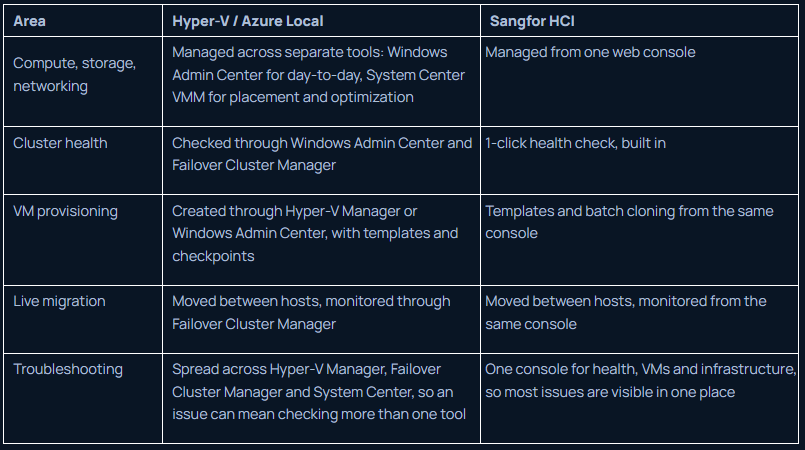
These are Microsoft Hyper-V’s standard management tools. If your team already runs Windows Server, they’re likely familiar with at least Windows Admin Center.
Sangfor’s console brings compute, storage, network and security into one screen, which means less switching between tools, but it’s also a new system for a Windows-trained team to learn.
Takeaway: Consider the skills your team already has and how much ongoing administration each setup requires.
Security: What's Built In?
Split security into two layers: what protects the VM itself, and what protects traffic moving between VMs.
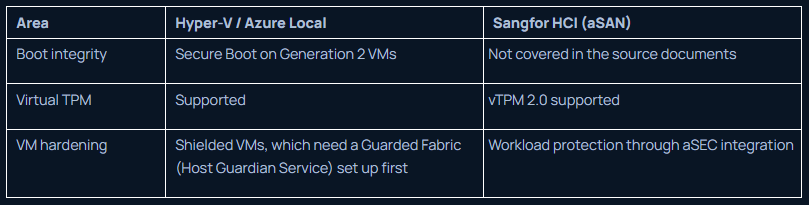
VM-level security
Boot integrity
Secure Boot on Generation 2 VMs
Not covered in the source documents
Virtual TPM
Supported
vTPM 2.0 supported
VM hardening
Shielded VMs, which need a Guarded Fabric (Host Guardian Service) set up first
Workload protection through aSEC integration
Network-level security
Network virtualization and security
Windows Server SDN: Network Controller, Software Load Balancer, Gateways
aNET virtual switching, built in
Micro-segmentation
Available through Windows Server SDN
Distributed firewall and smart micro-segmentation, built in
Web application firewall
Requires additional tooling
Built in
Cloud security (IPS and EDR)
Requires additional tooling
Built-in cloud security center
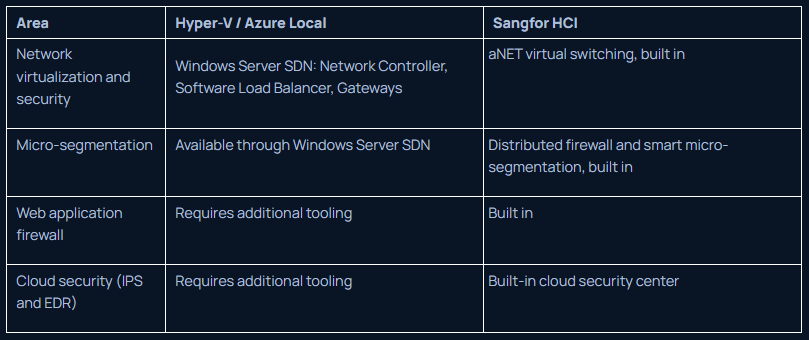
Windows Server SDN gives Hyper-V real network virtualization and security options, including its own micro-segmentation. The difference is setup.
SDN is a component you deploy and configure, and Shielded VMs need a Guarded Fabric standing behind them before they work.
Sangfor’s aNET and aSEC are part of the platform from the start.
Takeaway: Compare the security capabilities you actually need and the products required to deliver them.
Leaving VMware: Is Hyper-V or Sangfor HCI the Better Move?
If you’re coming off VMware, the real choice is what you want to run after the move. Both platforms can host the VMs you’re moving. The difference is how much you have to rebuild around them.
What you’re replacing VMware with
A hypervisor, with storage, management, security and DR added from other Microsoft tools
A single HCI platform covering compute, storage, networking and security
Licensing after VMware
Windows Server licensing (cores plus CALs), with Azure Local fees per core on top if you go HCI
One edition, perpetual or subscription
Migration tooling
Microsoft’s VM conversion tools
Built-in V2V conversion
Team learning curve
Familiar if your admins already run Windows Server, though the tooling is spread across several consoles
A new console to learn, but one place to manage everything
Best fit
Teams already deep in the Microsoft stack, with Windows Server licensing in place
Small teams that want one platform instead of assembling several tools
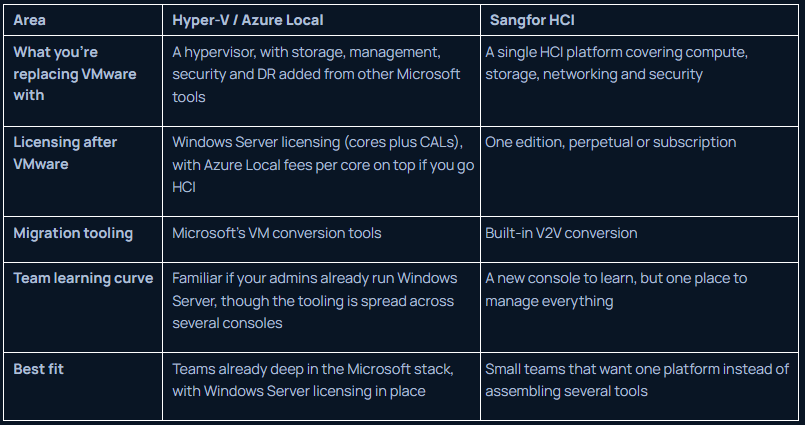
If your environment is already Microsoft-heavy and you hold Windows Server Datacenter licenses, Hyper-V can be the lower-friction move. If you’d rather replace VMware with a single platform than rebuild it piece by piece, Sangfor HCI is the simpler path, especially for a small IT team.
Takeaway: Decide based on what you already own, how many tools your team can realistically manage and how fast you need to move off VMware.
Migration: Moving from Hyper-V to Sangfor HCI
Moving a VM means recreating it on the new platform without breaking whatever depends on it. Sangfor HCI has tools built for this: V2V converts a virtual machine from one platform to another, P2V converts a physical server into a virtual one, and it also imports and exports standard OVA files.
Those tools handle the technical move. They don’t decide how easy or disruptive it will be. That depends on what you’re migrating.
Before you estimate cost or downtime, check five things:
- Guest OS compatibility. Confirm each VM’s operating system and drivers are supported on Sangfor HCI before you move it, not after.
- Dependencies. Map which VMs talk to each other or to systems outside the cluster. Moving one VM in isolation can break another that relies on it.
- Hardware. Sangfor HCI doesn’t restrict which server brand you use, but your current servers still need to meet its requirements.
- Storage. Your VM data has to move from your current shared storage or Storage Spaces Direct setup into aSAN. Plan that as its own step, not an afterthought.
- A tested rollback. Migrate one low-priority VM first. Confirm it runs correctly on the new platform. Keep the original VM running until you’re sure, so you have a way back if it doesn’t.
Takeaway: Assess your existing VMs and hardware before estimating migration cost or downtime.
Conclusion
If you’re already using Windows Server, Hyper-V may be all you need. But as your setup grows, managing storage, security and disaster recovery can mean bringing in more tools.
Sangfor HCI brings these capabilities together in one platform, making things simpler for small IT teams.
DC Technologies helps UAE businesses plan and deploy Sangfor HCI, with local support throughout the process and beyond.
Takeaway: Assess your existing VMs and hardware before estimating migration cost or downtime.
FAQs
Is Hyper-V free with Windows Server?
Hyper-V itself has no separate license fee, but it’s not free in practice. You’re still paying for the Windows Server license it runs on, and a full hyper converged setup adds Azure Local’s per-core fees on top.
Is Sangfor HCI a good Hyper-V alternative?
Yes, especially if you want compute, storage, networking and security in one platform instead of assembling Hyper-V, Windows Admin Center, System Center VMM and a separate DR tool yourself.
Can Sangfor HCI replace an existing Hyper-V cluster?
In most cases, yes. Sangfor HCI includes V2V migration tools built for moving VMs from another platform. How smooth that move is depends on your current guest OS versions, storage setup and VM dependencies, so it’s worth assessing your environment before planning the switch.
What is the difference between Hyper-V and HCI?
Hyper-V is a hypervisor. It runs virtual machines on a single server. HCI, or hyper converged infrastructure, combines compute, storage and networking into one system across a cluster of servers. Hyper-V can be part of an HCI setup through Azure Local, but on its own it’s just the virtualization layer, not the full infrastructure platform.
Is Hyper-V suitable for small businesses?
It can work if you’re already on Windows Server. It gets harder once you need HA, DR and security fully set up, since that usually means adding separate Microsoft products instead of getting them in one place.
Share